How to use BrandAI

From a sponsor list to a report you can send to the sponsor. Every step with a picture from the account.

  1. 1Add your sponsors
  2. 2Upload a match
  3. 3Wait for the report
  4. 4Read the report
  5. 5Check the evidence
  6. 6Download and send to the sponsor
  7. 7Invite colleagues
  8. 8Pay

Add your sponsors

Choose Sponsors on the left and click Add sponsor.

  • Name. This is how the sponsor appears in the report, for example Betsson.
  • Logo names. All of the sponsor's marks separated by commas, for example Betsson, Betsson casino. They count as one sponsor.
  • Logo files. Upload the logos as PNG, JPG, SVG or PDF.
  • Click Save.

Tip. If we do not recognise a sponsor yet, we prepare it the first time. It takes up to one day and you do not need to do anything.
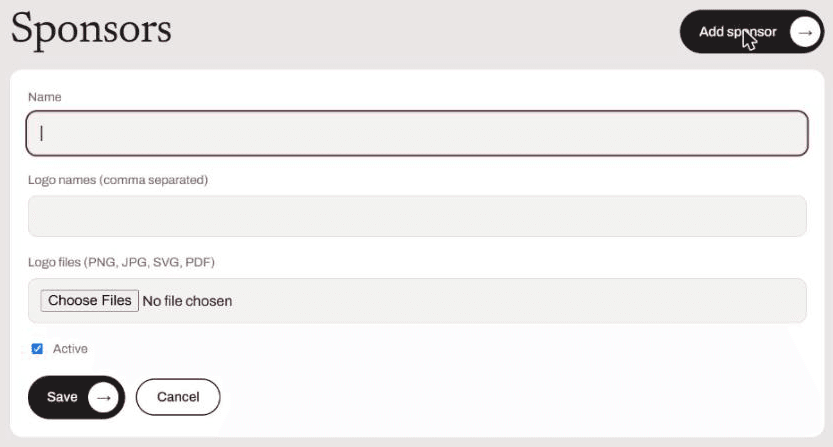
Add sponsor form

Upload a match

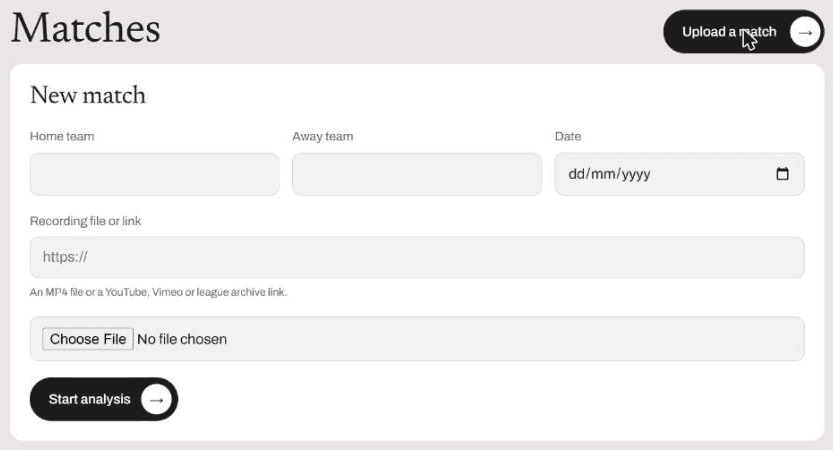
Choose Matches and click Upload a match.

  • Enter the home team, the away team and the match date.
  • Paste a link to the recording (YouTube, Vimeo, league archive) or choose an MP4 file.
  • Click Start analysis.

Tip. The full broadcast from start to end works best, at 720p or better. We cannot open links from paid platforms. Upload the file instead.

Match upload form

Wait for the report

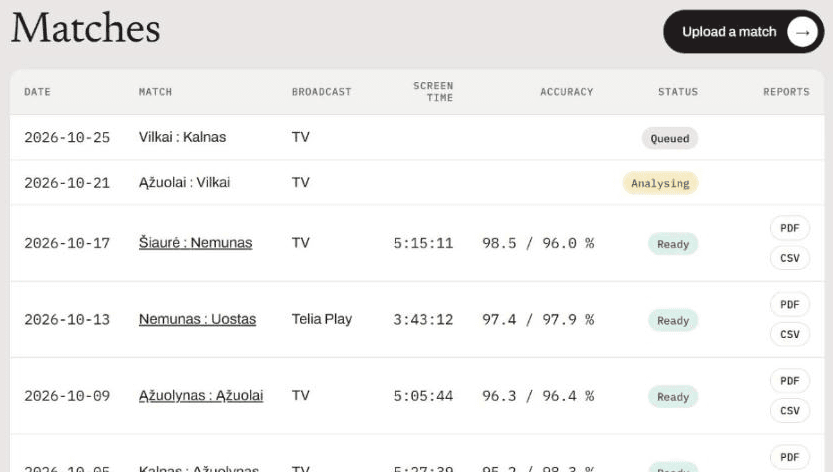
The match list shows the status of every match.

  • Queued. The match is waiting its turn.
  • Analysing. The system is going through the whole recording.
  • Ready. The report is done and you get an email.
  • Failed. The reason is shown next to the match. We are notified straight away.

Tip. Reports are ready within one day. Usually sooner.

Match list with statuses

Read the report

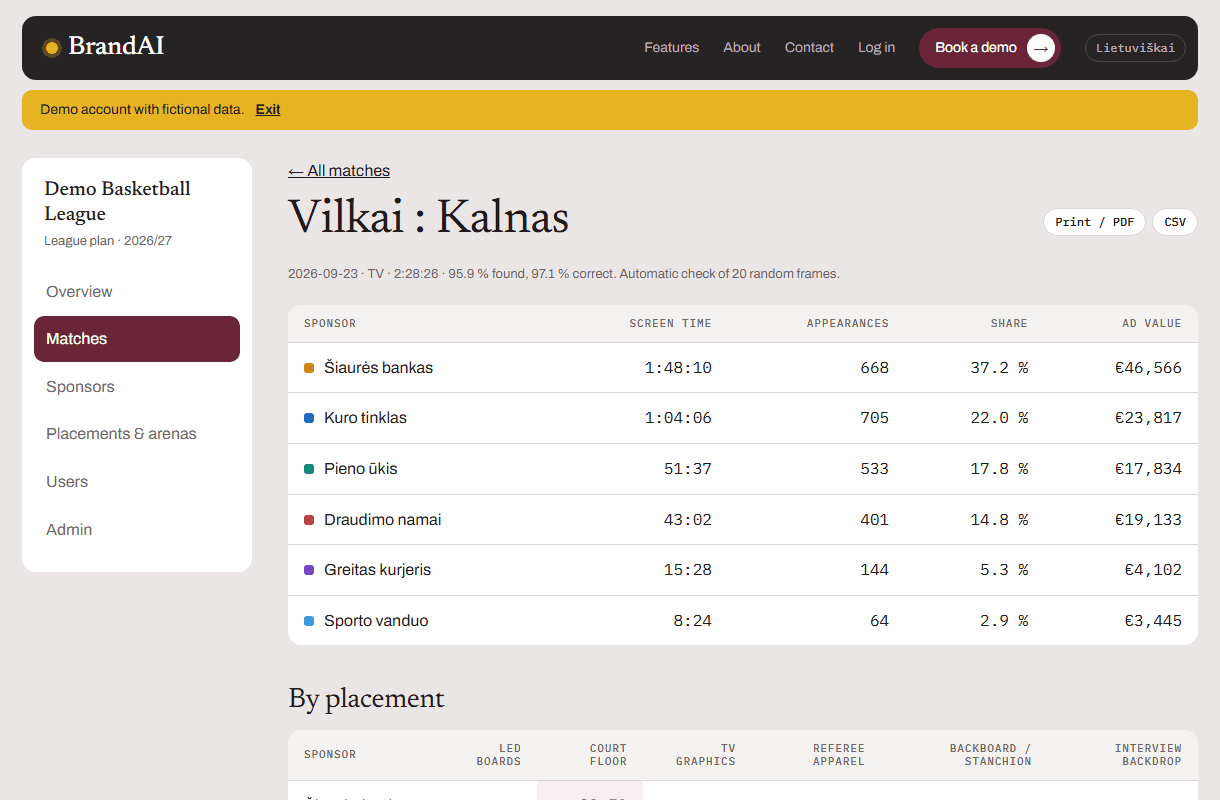
Click the match name in the list.

  • Screen time, appearances, share of all sponsors and advertising value for each sponsor.
  • By placement. Where the sponsor was seen: LED, floor, TV graphics, backboards and more.
  • By quarter. When during the match it was seen.
  • Accuracy, for example 97.4 / 97.9 %. The first number shows how many clearly visible logos were found. The second shows how many shown cases are correct.
Match report

Check the evidence

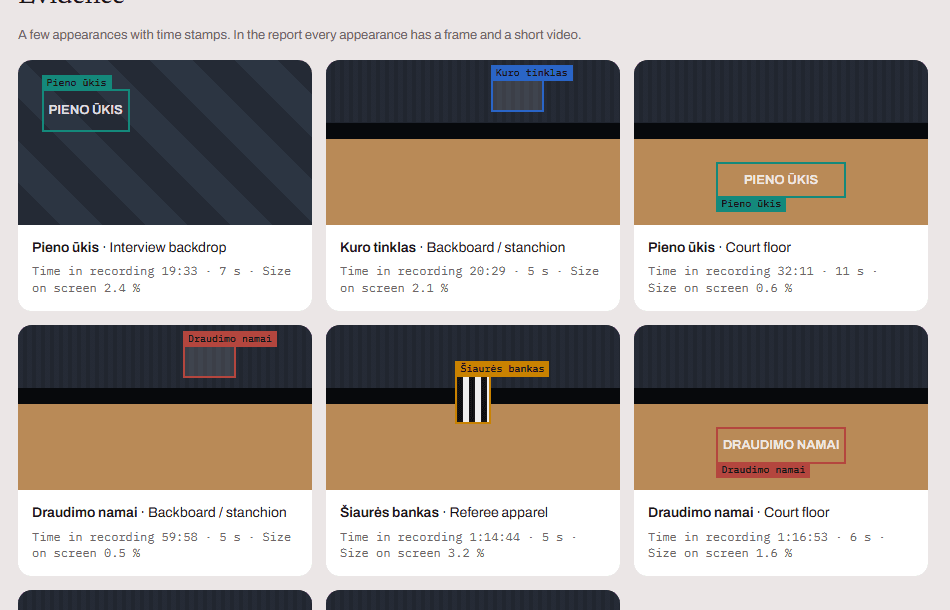
At the bottom of the report you find frames from the broadcast.

  • Each frame shows where and when the logo was visible.
  • The time in the recording is next to it so you can check any appearance yourself.
Evidence frames

Download and send to the sponsor

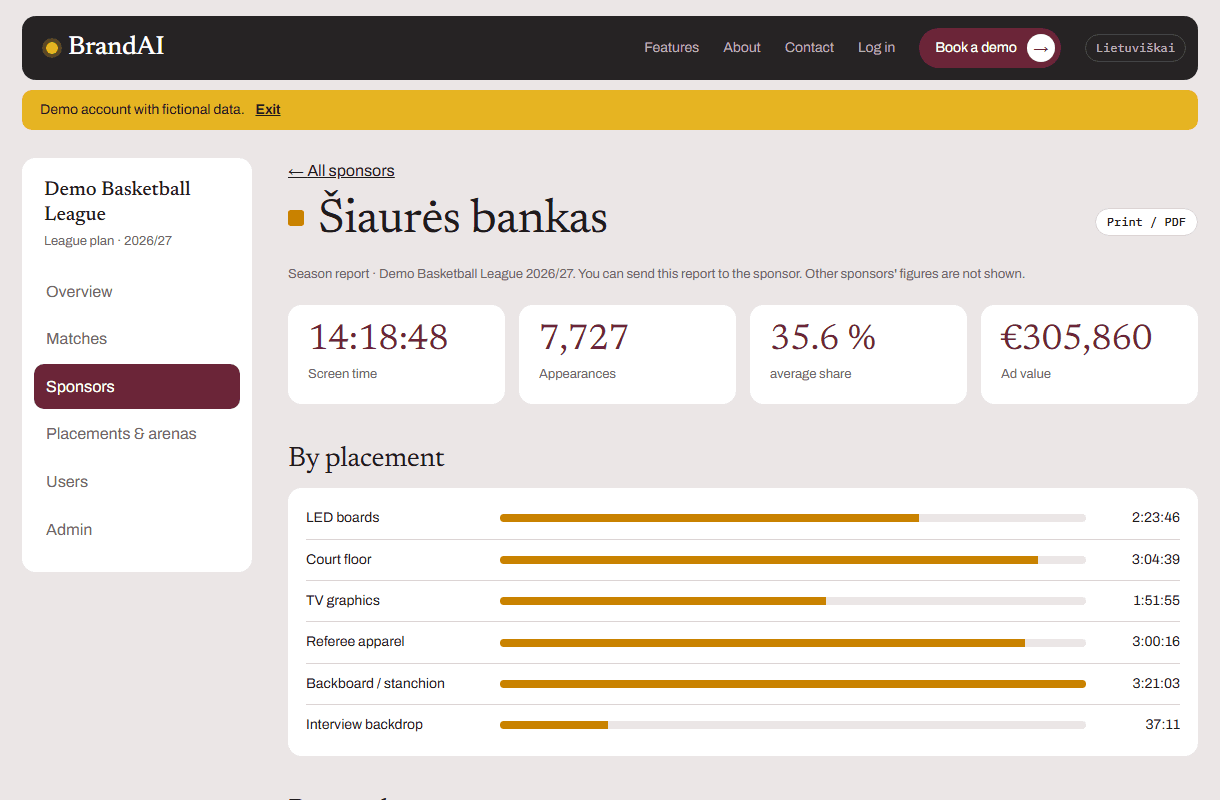
You can download the report and share it.

  • In the match list click PDF or CSV.
  • Report for the sponsor: Sponsors, then click the sponsor name. It shows only that sponsor's figures so you can send it safely.
Sponsor season report

Invite colleagues

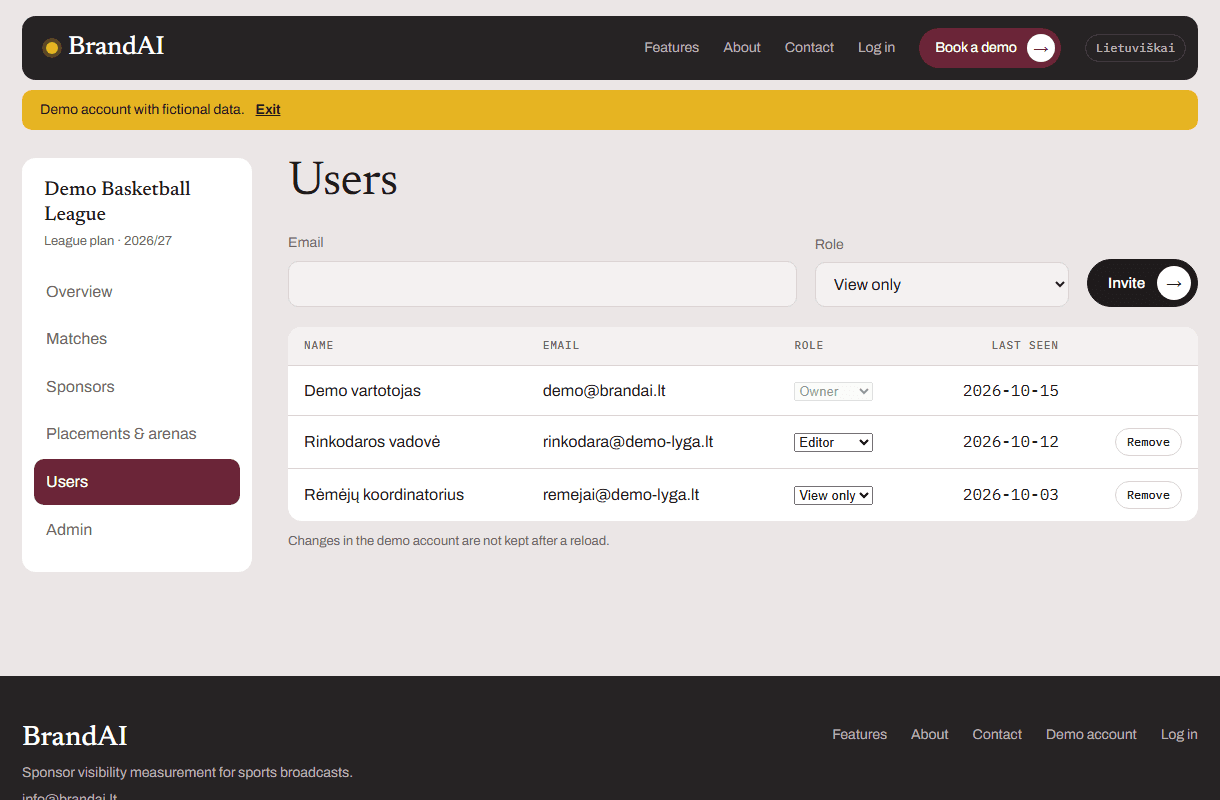
Choose Users, enter an email and click Invite.

  • Owner. Can do everything including billing.
  • Editor. Uploads matches and manages sponsors.
  • View only. Sees the reports but cannot change anything.
User list

Pay

Choose Billing.

  • Pick a plan and click Pay by card.
  • Or click Get an invoice. The invoice arrives by email. Pay by bank transfer within 14 days.
  • All invoices stay in the list and you can download them any time.

Common questions

What does the ≈ sign next to a sponsor mean?

That sponsor is measured below 95 % accuracy. Usually these are very small or rarely shown logos. The report says why.

What recording do you need?

The full match broadcast as an MP4 file or a link. 720p or better works. Short clips do not work because the screen time would be wrong.

How long do you keep the upload?

30 days. Then the recording is deleted. The reports and evidence frames stay in your account.

Can I try it first?

Yes. The demo account has a sample league with made up data. We prepare your first match report for free.

Want to try it?

Open the demo account or write to us. We reply the same working day.